.png)

QuickBooks helps record and organize the financial activity of a business.
CFOly helps accounting firms and business owners review, visualize and discuss that information.
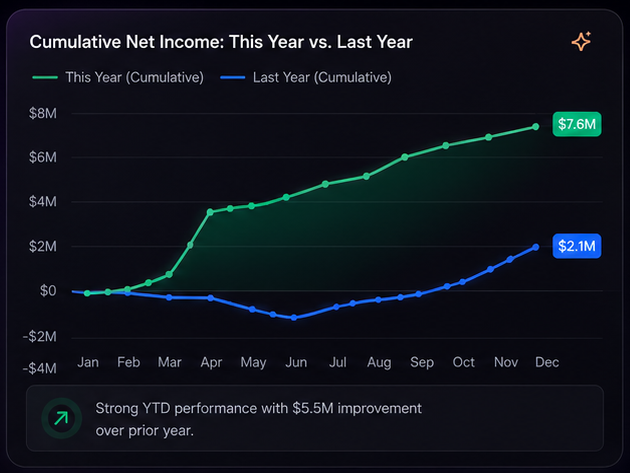
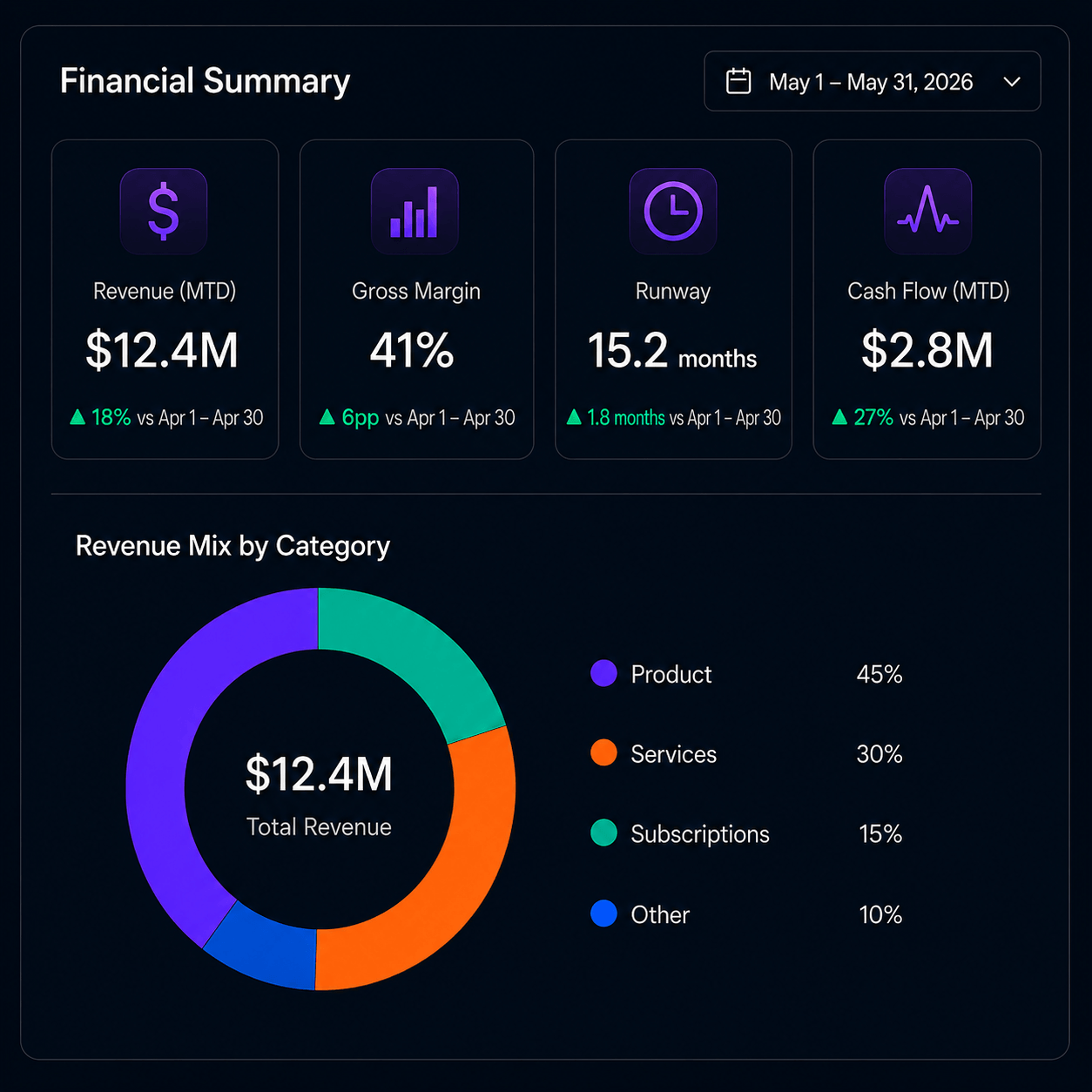
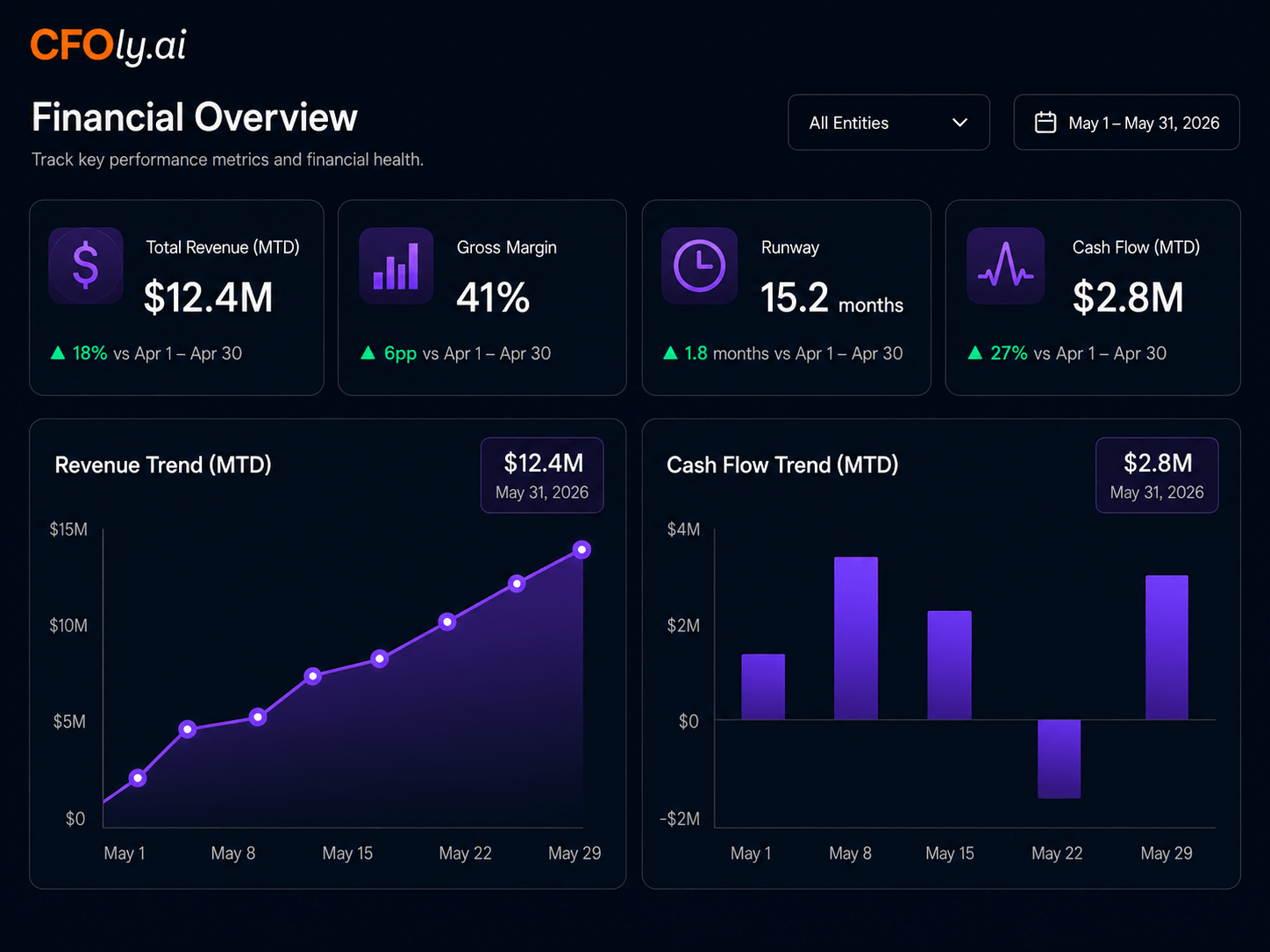
Connect a supported QuickBooks Online company to create financial dashboards, monitor goals and KPIs and explore business performance more efficiently.
CFOly connects using read-only access, so your team can analyze financial information without changing the records stored in QuickBooks.
.svg)
CFOly connects to QuickBooks Online with read-only access, helping protect your accounting records from unintended changes.

Create or sign in to your CFOly account.

Select the option to connect QuickBooks Online.

Sign in to QuickBooks and authorize the applicable company.

Authorize CFOly to securely access supported financial information in read-only mode.

Add business goals, context and available KPIs.
After securely connecting a supported QuickBooks Online company with read-only access, CFOly uses available financial information to help you review performance, monitor KPIs, and uncover useful financial insights.